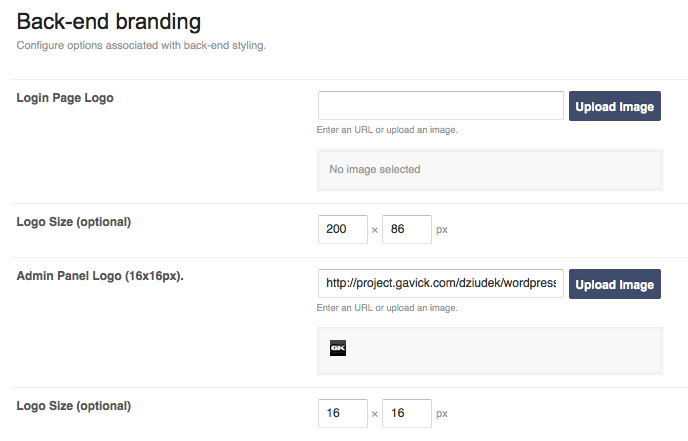
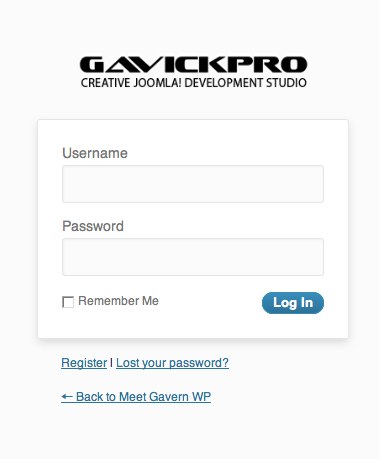
There are four key places connected with branding in a theme based on GavernWP framework:
- page’s logo
- page’s footer
- framework’s logo under a page’s footer
- page’s favicon
There are the following administration panel options responsible for these elements:
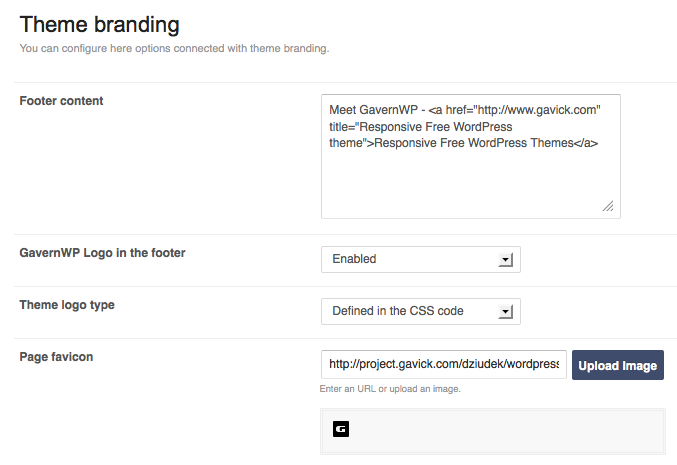
In the case of a framework’s logo, it is only possible to switch it on/off.
Footer content is defined in Footer content option. It will be displayed at the bottom of the page, usually on the right side.
The majority of parameters are connected with a Theme logo type. The first step in a logo configuration is to choose a logo type; there are the following logo types available:
- Defined in the CSS code – a logo is defined theme’s CSS style as an element having cssLogo class. In this case, except CSS code modification, no other settings changes are needed.
- Image logo – after choosing this option, some additional options will appear:
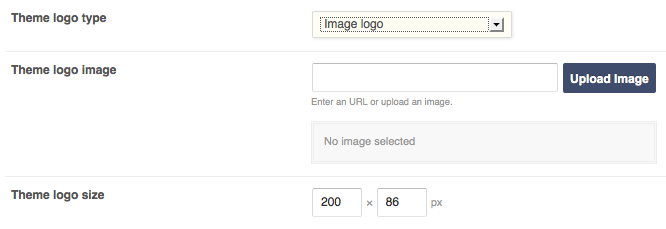 You have to choose an image logo and specify its sizes.
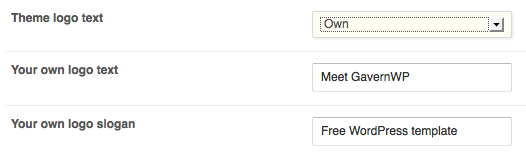
 - Text logo – likewise in the previous option, some additional options appear:
 Theme logo text option specifies whether main logo text and the signature below it will be taken from WordPress settings (from WordPress settings) or will be specified by a user (Own). In the case of choosing the second option, two additional fields to fill in will appear:
- None – in this case, a logo will not be displayed.
The last section of theme branding settings is connected with the favicon. Page favicon is a small graphic, that is associated with the page or Web site. You have to specify direct path of favicon.ico file or use the Upload Image button.