Category Archives: Theme Features

Articles about the main theme features: typography, responsive layout, widget rules and styles etc.

Available Filters

List of Filters available in MeetGavernWP Theme

For theme parts:

  • gavern_thumbnail_caption (you can change captions of thumbnails)

For social links (Every social link can be changed by filter):

  • gk_social_fb_link
  • gk_social_gplus_link
  • gk_social_twitter_link
  • gk_social_rss_link

For the title:

  • gavern_blog_name
  • gavern_blog_desc

For the Theme logo:

  • gavern_logo_html

For metatags:

  • gavern_meta_description
  • gavern_meta_keywords

For Open Graph tags:

  • gavern_og_title
  • gavern_og_image
  • gavern_og_type
  • gavern_og_description
  • gavern_og_url
  • gavern_og_custom

For the breadcrumb (e.g. to change “Meet Gavern WP” to “Home” in breadcrumb):

  • gavern_breadcrumb
  • gavern_breadcrumb_home

For the GK News Show Pro widget

  • gk_nsp_art_title
  • gk_nsp_art_text
  • gk_nsp_art_image
  • gk_nsp_art_info
  • gk_nsp_art_readmore
  • gk_nsp_link_title
  • gk_nsp_link_text

For the GK Tabs widget

  • gk_tabs_tab
  • gk_tabs_content

For example, to change “Meet Gavern WP” to “Home” in breadcrumb use following filter:
[code style=”1″]function my_breadcrumb_home( $home ) {
return ‘Home’;
}

add_filter(‘gavern_breadcrumb_home’, ‘my_breadcrumb_home’);[/code]

Available Hooks

Hooks allows to “hook” a custom function to an existing function, which allows you to modify WordPress’ functionality without editing core files. Modifying these files may create a security loophole and you will have lost the modification when you upgrade your WordPress installation, so we strongly recommend using hooks.

List of hooks available in MeetGavernWP Theme:

Hooks connected with the document:

  • gavernwp_doctype
  • gavernwp_html_attributes
  • gavernwp_title
  • gavernwp_metatags
  • gavernwp_fonts
  • gavernwp_ie_scripts
  • gavernwp_head
  • gavernwp_body_attributes
  • gavernwp_footer
  • gavernwp_ga_code

Hooks connected with the content:

  • gavernwp_before_mainbody
  • gavernwp_after_mainbody
  • gavernwp_before_loop
  • gavernwp_after_loop
  • gavernwp_before_nav
  • gavernwp_after_nav
  • gavernwp_before_post_content
  • gavernwp_after_post_content
  • gavernwp_before_column
  • gavernwp_after_column
  • gavernwp_before_sidebar
  • gavernwp_after_sidebar

Hooks connected with comments:

  • gavernwp_before_comments_count
  • gavernwp_after_comments_count
  • gavernwp_before_comments_list
  • gavernwp_after_comments_list
  • gavernwp_before_comment
  • gavernwp_after_comment
  • gavernwp_before_comments_form
  • gavernwp_after_comments_form

Child Themes

Since version 1.6 you can fully use the Child Themes feature.

The implementation of the Child Themes support is strictly connected with two functions:

  • gavern_file_uri – returns the URI to the specific file relative to the root of the theme directory
  • gavern_file_path – returns the absolute path to the specifi file relative to the root of the theme directory

Both functions accepts the false as an argument – then these functions returns the URI/path to the specific theme directory.

IMPORTANT! Please remember to don’t use the slash at the start of the path to file.

In example:[code style=”1″]gavern_file_uri(‘images/abc.png’);[/code]

will return: http://yourdomain.com/wp-content/themes/MeetGavernWP/images/abc.png

and using the false argument:[code style=”1″]gavern_file_uri(false);[/code]

will return: http://yourdomain.com/wp-content/themes/MeetGavernWP/

So now you can override every file in your Child Theme. Please remember about some specific dependicies.

I.e. you can copy the template.css file and change it, but then you will have to also import to your Child Theme the images directory, because the theme will use the CSS from the Child Theme’s directory so the CSS file will link to the images directory in the Child Theme’s directory.

Responsive table example

Responsive tables in Meet GavernWP needs to have proper structure with the thead and tbody elements – then our script will prepare tha table for correct display on the mobile devices with smaller screens (under 600px).

Lorem Ipsum Dolor Sit Pharetra Sem Tortor Amet
Nulla vitae elit libero a pharetra augue Aenean lacinia bibendum nulla sed consectetur
Praesent commodo cursus magna vel scelerisque nisl consectetur et. Etiam porta sem. malesuada magna mollis euismod
Nulla vitae elit libero a pharetra augue Aenean lacinia bibendum nulla sed consectetur
Praesent commodo cursus magna vel scelerisque nisl consectetur et. Etiam porta sem. malesuada magna mollis euismod

Branding

GavernWP makes accessible options allowing for theme’s branding. Branding options are divided into two groups:

  • theme’s branding
  • administration panel branding

Thanks to theme’s branding options, a user may specify:

  • specify page’s logo
  • specify theme’s footer content
  • decide about displaying a framework logo under page’s footer
  • specify page’s favicon

More information about branding options for a theme can be found in an entry devoted to a “Theme branding” tab in an administration panel.

Administration panel branding options allow to define:

  • a logo displayed next to a theme’s name in an administration panel sidebar
  • a logo visible over a log in form to an administration panel

More about branding options for an administration panel can be found in an entry devoted to “Back-end branding”  in an administration panel.

Widget rules

Widget rules is a mechanism which introduces a completely new way to manage widgets on a website. Thanks to it, it is possible to specify widget features such as:

  • displaying on subpages chosen,
  • displaying on devices chosen,
  • displaying for a group of users chosen,
  • displaying with a widget style use chosen.

After switching on widget rules in theme’s advanced settings, under each widget, the following options should be displayed:
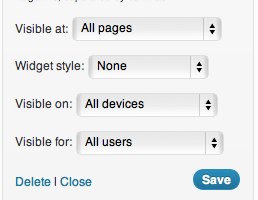
widgets1

The most extensive options are those connected with a widget visibility on subpages chosen – after choosing an option to show a widget on pages chosen (or an option not showing a widget on pages chosen), such a panel will appear:
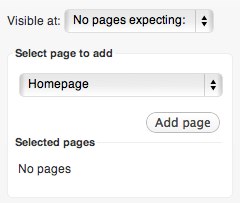
widgets2

Then, you have to choose a page’s type to add, e.g. Category, and then give category ID:
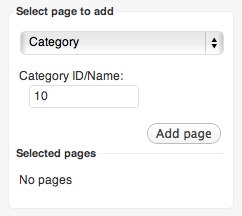
widgets3

After clicking “Add page” button, a page will appear on a list of pages chosen on which in our case a widget will be displayed:
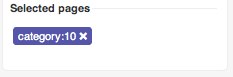
widgets4

Of course, it is possible to add more pages:
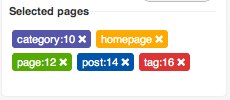
widgets5

To make it clearer, , each page’s type is displayed with a different color. A page added can be removed by clicking a removing icon placed on the right side of each page.

In this way, you may set a widget so as to be shown on pages chosen or to be shown on all pages except the chosen ones.

Recent Updates bring new features. An option of displaying a widget on chosen pages has now twelve options:

  • Homepage
  • Page
  • Post
  • Category
  • Tag
  • Archive
  • Author
  • Page Template (Contact, Gallery, Login, Latest, Tagcloud etc.)
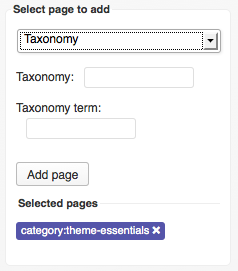
  • Taxonomy (to group things together)

    meetgavern_wp_widget_rules_new1

  • Post type (Other than default e.g. products from shop plugin)
  • Search page
  • 404 page

Generally, widgets are shown on all pages.

An option of displaying a widget on devices chosen has five options to choose:

  • All devices – a widget will be displayed everytwhere – on every device
  • Desktop – a widget will be displayed only when neither a tablet.css file nor a mobile.css is loaded
  • Tablets – a widget displays only when a tablet.css file will be loaded and, at the same time, a mobile.css file will not be loaded
  • Smartphones – a widget will be displayed only when a mobile.css file will be loaded
  • Tablets/Smartphones – a widget will be displayed when at least one file will be loaded: tablet.css or mobile.css.

Thanks to these settings, it is possible to limit significantly the amount of content displayed on devices with small screens.

An option of displaying widget for a chosen groups of users has four options to choose:

  • All users – a widget will be displayed to all users
  • Only guests – a widget will be displayed to not logged in users
  • Only registered users – a widget will be displayed to logged in users only
  • Only administrator – a widget will be displayed to administrators only

Thanks to this option, it is possible e.g. to display messages specified by using widgets for a group of users chosen.

The last optio from widget rules is an option for choosing a widget style – it causes appending to a widget main container an additional class giving styling specified by a user.

Widget styles are defined in widget.styles.json file and in CSS code – in this case in css/wp.extensions.css.

Custom Page Styles

GavernWP makes accessible a few own styles of subpages. Thanks to them, it is possible to use WordPress possiblitities better  and adjusting pages to themes chosen.

All additional subpages styles are placed in a main catalog in template.*.php files. GavernWP has the following subpages:

  • template.archive.php – an archive page, in includes a list of recent posts, categories and a list of links to monthly archives.
  • template.contact.php – a page with a contact form which allows to send an email to an email address specified in a WordPress configuration.
  • template.fullwidth.php – a page’s layout without a sidebar.
  • template.gallery.php – a page generating an animated gallery of images with a mechanism of attachments available in WordPress – it is enough to assign attachments to such a page that they will show as slides in a gallery. It is recommened to choose images with the same size.
  • template.latest.php – a page generating a list of recent posts (with full post content).
  • template.login.php – a page generating a login form for users – after logging in, it displays information about his/her username and a button to log out.
  • template.tagcloud.php – a page generating a tag cloud of our website.

Main CSS styles of subpages are in a css/stuff.css file. However, you have to remember that some more extensive files of subpages may additionally load CSS and JavaScript files from css/templates/ and js/templates/.

In order to load additional files in this way, it is enough to specify the second parameter of a gk_load function (see: code of requesting a gk_load function in a template.gallery.php file).

Comments Features

GavernWP has support for comments with a division into threads. Thanks to it, discussions made in comments under a post given are clearer.

All options connected with comments configuration can be set by using standard options in a WordPress administration panel (Settings > Discussion). Threads in comments are switched on thanks to “Enable threaded (nested) comments” and specifying maximal depth of nested comments in threads.

There are two files responsible for generating HTML code of comments, namely:

  • comments.php – it includes a code which generates a comments list and a form of adding comments.
  • gavern/helpers/helper.layout.fragments.php – in gavern_comment_template function, there is a code responsible for generating a code of a comment given.

CSS code responsible for a style of comments and a form of adding comments is in css/wp.css file.


Meet Gavern has also two new options connected with comments, available in Advanced theme settings:

  • Add target blank to comments links – if this option is enabled, then every link in the comments text will open in new browser tab.
  • Autolinking in comments – if this option is enabled, then every link in the comments text will be automatically changed into hyperlink

Social API

Thanks to Social API, adding buttons to an entry for sharing posts in the most popular social network services is very easy.

At the moment, Social API supports four services:

  • Facebook
  • Google+
  • Twitter
  • Pinterest

Buttons for sharing are generally added under an entry. All contact data needed for sharing are loaded from entry content or from OpenGraph metatags.

Thanks to extensive configuration options, it is possible to adjust buttons look in accordance with available configuration parameters.

The most important thing is that the work of Social API can be limited to specific posts or switch off some posts from its work.