Tag Archives: theme

Typography button

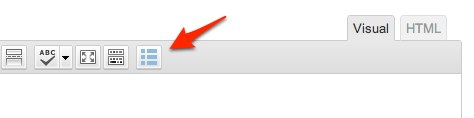
To simplify shortcodes use available in themes based on GavernWP framework, a button for theme’s typography has been implemented which is available in a posts editor:meetgavernwp_typo1
 

By clicking this button, you will see a list of available typography elements:meetgavernwp_typo2
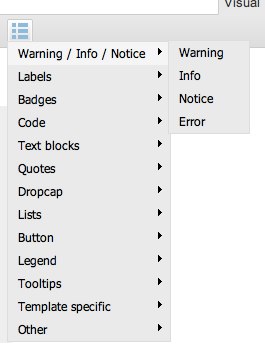
 

It is possible to choose a version with a stylistic specified for the majority of elements. After choosing a particular style, a shortcode will appear which will be replaced in entry content by scripts to structure styled in a way given.

Please, note that adding a new Shortcode code requires three operations:

  • adding an entry in shortcodes.js configuration file
  • adding PHP code supporting a shortcode given
  • adding optional CSS and JavaScript code (if a shortcode given requires it)

shortcodes.js file in config catalog includes entries which are replaced to menu structure visible after clicking a typography button – it includes $GAVERNWP_SHORTCODES variable which is a table including objects representing elements of a menu. Each object has three features: title, code and submenu. Let’s analyze this structure with a Highlight position:

[code]{

“title”: “Highlight”,
“code”: “[highlight]Your text[/highlight]”,
“submenu”: [
{
“title”: “Style I”,
“code”: “[highlight style=\”1\”]Your text[/highlight]”
},
{
“title”: “Style II”,
“code”: “[highlight style=\”2\”]Your text[/highlight]”
},
{
“title”: “Style III”,
“code”: “[highlight style=\”3\”]Your text[/highlight]”
}
]
},[/code]

  • title – it includes a menu positon name displayed by a script
  • code – it is a shortcode code which will be added to an entry when clicking a menu position given – you have to remember that not all menu positions on the first level have a value in this field – if it was an empty sequence of symbols, it means for a script that clicking on a menu position given does not request any action.
  • submenu – it is a table  of a submenu of a menu position given. Each submenu position is built the same as menu positions as these on the first level but with one difference – a submenu cannot have the next submenu, so you do not add a submenu feature in a submenu object.

Let’s say, we added our shortcode to a typography button using shortcodes.js file. So, there is one thing left to do – support our shortcode from a theme side.

To do this, you have to open gavern/helpers/helpers.shortcodes.php file.

This file is divided into three main sections starting with lines similar to:

[code]if(get_option($tpl->name . ‘_shortcodes1_state’, ‘Y’) == ‘Y’) {[/code]

It is a conditional  IF instruction connected with a group of typography elements given. Gavern icludes three groups:

  • typography elements – functions connected with it have gavern_ts_ prefix in the title
  • interactive elements – functions connected with it have gavern_ies_ prefix in the title
  • elements characteristic for a particular theme – functions connected with it have gavern_tss_ prefix in the title

We recommend to add new typography elements in the last group – in Meet GavernWP theme, it is empty by default. Please, remember about using an appropriate prefix in a function name for a group given, e.g. in the case of the third group, it will be gavern_tss_. The code itself of a shortcode given has to be created according to guidelines described in Shortcode API.

The last step is rather optional and depends on your Shortcode type. If your Shortcode requires additional CSS or JavaScript code, you have to define it in shortcodes.*.css i shortcodes.*.js files, where * is a group name to which a Shortcode given was assigned.

It is very important to place elements of CSS and JavaScript code in an appropriate file, as it will give a possibility of optimizing whole theme code when switching off given group of Shortcodes codes.
Import/Export settings

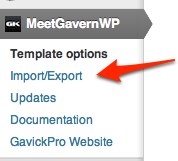
Sometimes, there is a situation when you have to copy a configuration from one installation to another. In order to simplify it, GavernWP has been equipped with an import and export options of theme’s settings in “Import/Export” tab of a theme’s main menu:

meetgavernwp_import-exp

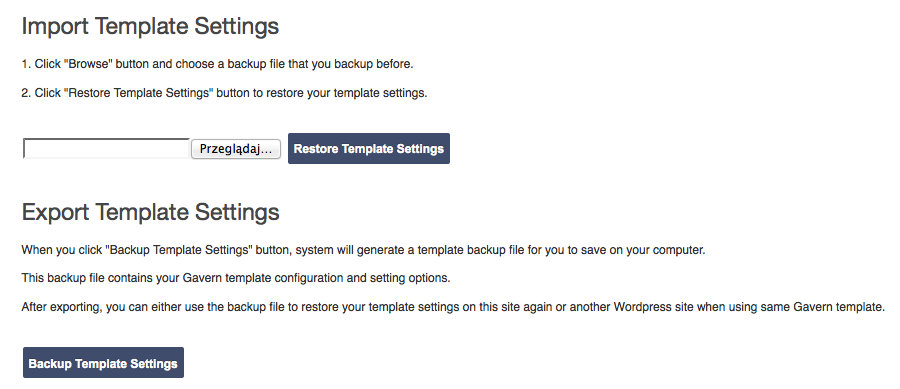
After entering a page of these settings, you will see the following view:

meetgavern-wp_importexport

When you click the Backup Template Settings button, system will generate a template backup file for you to save it on your computer. (Filename contains theme name, date and time of backup).

This backup file contains your Gavern template configuration and setting options.

After exporting, you can either use the backup file to Restore template settings on this site again or another WordPress site when using same Gavern theme.

Note! While exporting settings, you have to remember that it is possible to copy settings between the same themes.
Theme’s settings are available in JSON format, so it is possible to save these settings to a file and then modify them manually before loading to a different theme.

Tip: We recommend to make a backup of theme’s settings, thanks to it, you will be secured against not desired effects of greater changes in a theme’s configuration.

Updates

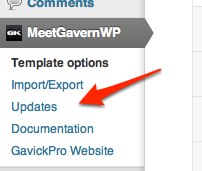
GavernWP has an update section which allows to access information whether a theme was updated to the latest version. In order to access an updates panel, you have to use “Updates” submenu from a main menu of theme’s options:

meetgavernwp_updates

If a theme was not updated, a list of updates will appear; which are newer than your theme version.

However, when you have a theme in the latest version, you will see an appropriate message that a theme does not have any new updates to download.

It’s worth remembering that a free theme – MeetGavernWP is available through a public repository in a github service which allows to easy analysis of changes implemented in particular files. In the case of commercial themes, it is recommended to use tools like WinMerge (Windows) or File Merge (MacOS X) to compare changes in files. Each update in our update system has information about the list of modified files. Generally, it is recommended to compare only these files which you modified manually after loading a theme.

Theme live editor

GavernWP has basic support for a new option available in WordPress 3.4 – an options editor with themes preview. Now, the most important options connected with theme’s style and its layout has been implemented to a live editor.

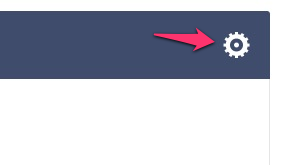
In order to reach it easier, we placed a direct link to this editor in the top part of themes’ options:

meetgavernwp-liveeditor 2

All options included in this editor are also available via traditional theme’s options panel.

In order to simplify adding your own options to a live editor, the whole code generating options is placed in a separate file: gavern/helpers/helpers.customizer.php.

You have to remember that all options and settings from a live editor are stored in the same place as their equivalents from an administration panel so settings change with a live editor causes changes in an options panel. That’s why, it is recommended not to use a traditional administration panel and a live editor at the same time because saving options with various values in two different places at the same time may not give the expected result.

Branding

GavernWP makes accessible options allowing for theme’s branding. Branding options are divided into two groups:

  • theme’s branding
  • administration panel branding

Thanks to theme’s branding options, a user may specify:

  • specify page’s logo
  • specify theme’s footer content
  • decide about displaying a framework logo under page’s footer
  • specify page’s favicon

More information about branding options for a theme can be found in an entry devoted to a “Theme branding” tab in an administration panel.

Administration panel branding options allow to define:

  • a logo displayed next to a theme’s name in an administration panel sidebar
  • a logo visible over a log in form to an administration panel

More about branding options for an administration panel can be found in an entry devoted to “Back-end branding”  in an administration panel.

Custom Page Styles

GavernWP makes accessible a few own styles of subpages. Thanks to them, it is possible to use WordPress possiblitities better  and adjusting pages to themes chosen.

All additional subpages styles are placed in a main catalog in template.*.php files. GavernWP has the following subpages:

  • template.archive.php – an archive page, in includes a list of recent posts, categories and a list of links to monthly archives.
  • template.contact.php – a page with a contact form which allows to send an email to an email address specified in a WordPress configuration.
  • template.fullwidth.php – a page’s layout without a sidebar.
  • template.gallery.php – a page generating an animated gallery of images with a mechanism of attachments available in WordPress – it is enough to assign attachments to such a page that they will show as slides in a gallery. It is recommened to choose images with the same size.
  • template.latest.php – a page generating a list of recent posts (with full post content).
  • template.login.php – a page generating a login form for users – after logging in, it displays information about his/her username and a button to log out.
  • template.tagcloud.php – a page generating a tag cloud of our website.

Main CSS styles of subpages are in a css/stuff.css file. However, you have to remember that some more extensive files of subpages may additionally load CSS and JavaScript files from css/templates/ and js/templates/.

In order to load additional files in this way, it is enough to specify the second parameter of a gk_load function (see: code of requesting a gk_load function in a template.gallery.php file).

Comments Features

GavernWP has support for comments with a division into threads. Thanks to it, discussions made in comments under a post given are clearer.

All options connected with comments configuration can be set by using standard options in a WordPress administration panel (Settings > Discussion). Threads in comments are switched on thanks to “Enable threaded (nested) comments” and specifying maximal depth of nested comments in threads.

There are two files responsible for generating HTML code of comments, namely:

  • comments.php – it includes a code which generates a comments list and a form of adding comments.
  • gavern/helpers/helper.layout.fragments.php – in gavern_comment_template function, there is a code responsible for generating a code of a comment given.

CSS code responsible for a style of comments and a form of adding comments is in css/wp.css file.


Meet Gavern has also two new options connected with comments, available in Advanced theme settings:

  • Add target blank to comments links – if this option is enabled, then every link in the comments text will open in new browser tab.
  • Autolinking in comments – if this option is enabled, then every link in the comments text will be automatically changed into hyperlink

Theme CSS

Theme’s CSS code is divided into a few files, loaded in order specified. All these files are in css catalog. You have to remember that order of these files is very important and its change may cause unpredictable changes of theme’s look because of using moving from general styling to detailed styling in CSS code.

The list of CSS files used in a theme is presented below (order according to recommended order of loading these files):

  1. normalize.css – CSS code unifying page’s elements styling in all browsers
  2. template.css – the most important CSS file responsible for page’s layout styling , basic typography, widget styling, etc.
  3. wp.css – CSS rules which are responsible for WordPress elements styling, e.g. a comments form , comments themselves or posts elements.
  4. shortcodes.*.css (optional) – a group of CSS files responsible for typography elements styling inserting to posts with Shortcodes.
  5. stuff.css – it includes styling of additional theme’s elements sucha s breadcrumbs or font-size switcher.
  6. wp.extensions.css – CSS rules connected with styling of standard widgets available with WordPress.
  7. extensions.css (optional) – a CSS file which you have to add yourself in the case when you want to style additional widgets. In the case of small changes in widget styling, we recommend to use override.css file instead of this file.
  8. tablet.css – CSS rules used while displaying a page on tablet devices.
  9. mobile.css – CSS rules used while displaying  a page on smartfon devices.
  10. ie*.css – a file or a group of CSS files used for correcting page’s look in an Internet Explorer browser.
  11. style*.css – a file or a group of CSS files used for changing coloring or general style of a theme – they are loaded automatically by a mechanism responsible for theme’s coloring.
  12. error.css – CSS rules used while displaying a error page.
  13. rtl.css –  CSS rules for language written in a Right-To-Left (RTL) direction.
  14. font-awesome.css – The full suite of Retina ready pictographic icons, e.g. for widget titles.
  15. override.css (optional) – you may add your own rules in this file which will overwrite existing rules in previous files – a perfect solution for theme modification without modifying the remaining CSS files.

Additionally, CSS code used in a theme itself, you will also find in a templates catalog where there are CSS files loaded on chosen styles of subpages, e.g. needed for correct work of a gallery.

Theme structure

Each theme’s subpage in GavernWP is created and based on one file from theme’s main catalog, e.g. single.php and at least four additional files from layouts catalog:

  • header.php – this file includes starting page’s structure i.e. a head section and the whole headline with elements such as: logo, main menu, etc.
  • before.php – there are all widget positions included in this file which are before page’s main content.
  • after.php – this file is an equivalent of before.php file but with one difference – it includes widget positions which are after page’s main content.
  • footer.php – similarly to header.php file, it includes a starting page’s structure as footer.php includes the ending page’s structure, i.e. a footer and and elements below.

The above files with a file given from a main catalog, create a basic structure of each page. The remaining elements are generated by additional files or functions. The majority of of such files can be found in layouts catalog; e.g. files with names content.post.*.php, include constituents of each post. . Using these files allowed to restrict the amount of code in theme’s main files and simplify its modification as change e.g. an entry footer requires modification of one or two files only.

Functions used for generating additional information displayed in posts are in gavern/helpers/helpers.layout.fragments.php file.