Modification of administration panel content in GavernWP is very easy – it is based on JSON files which include a list of options. Thanks to it, creating new options available in an administration panel is very easy.
Options files are in gavern/options catalog in a folder connected with a currently used language. In the catalog, you will find two main files groups:
- tabs.json file – it includes a list of sections visible on the right side of an administration panel:
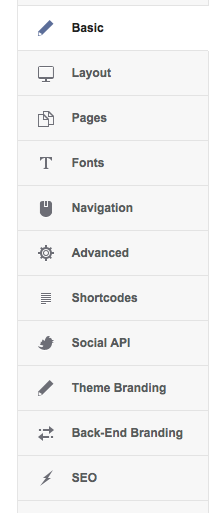 each section is described with a table in the form [code][“Basic”, “options.basic”, “enabled”][/code] the first element of a table is a section name displayed in a panel, the second element is a file name without “.json” extension which stores a list of options available in a section given and the third value refers to whether a section given is visible in a panel. In this case, there will be a Basic tab displayed in a panel based on content of options.basic.json file.
 - options.*.json files – they include a list of options available in a section given – their names are strictly connected with the content of tabs.json file.
Each options.*.json file includes three main fields in an object stored:
- groupname – it is a section title
- groupdesc – it specifies a section description displayed directly under a section title
- fields – it includes a table of objects of fields displayed under the title and a section description
Each field defined by an object including the following fields:
- name – it specifies an option name which will be connected with a particular field. There is a prefix added automatically to an option name which is a theme name (it is stored in a global variable – $tpl->name).
- type– it specifies a field type. Standard fields are:
- TextBlock – a field including a description text – it is not used for storing any option value
- Text – the easiest text field allowing to insert short text values
- RawText – pure, simple text without any formatting
- Textarea – a text field used for inserting a greater number of text values
- Select – a select field
- Switcher – a checkbox restricted to two options: “Enabled” and “Disabled”
- Media – a field allowing to choose images
- WidthHeight – a field allowing to specify two values defining width and height (mostly used with a Media field)
These fields are defined in a gavern/form_elements/standard.php file and their code was derived from a GKFormInput field. It is worth remembering that files connected with options are parsed by a gavern/form.parser.php file. Additionally, you may create your own fields types in a gavern/form_elements catalog. In GavernWP, we have included the following fields types:
- Menu – a field allowing to generate options connected with page’s menu – used in a Navigation section
- ThemeStyle – a field allowing to choose page’s style – used at the beginning of a Basic section.
The description of creating your own fields types we will describe in the further part of this article.
- label – it specifies a label text visible next to a field
- tooltip – (optional) it allows to specify tooltip content which will appear after mousing over a label of a field given
- default – default value of a field given
- class – (optional) this field allows to specify CSS classes added to an element while generating it (if a field code supported such a functionality)
- format – (optional) a field specifying a desired field content in the form of a regular expression. e.g. value: [code][a-zA-Z]{2,5}[/code] specifies that a field given will be filled in correctly only when a user set as its value a sequence of capital or small letters from 2 to 5 symbols.
- required – (optional) allows to specify whether filling in a particular field was required
- visibility – (optional) specifies when a particular field is visible. Visibility rules are separated with commas and are created in FIELD_NAME=VALUE format – in the case of a few visibility rules, they are linked with AND operator. The value of FIELD_NAME is a name without a prefix with a theme name. e.g. [code]option1=10,option2=20[/code] will cause that a field given will be visible when an option with option1 name will be set to 10 and, at the same time, an option2 option will have have value equals 20.
- other – (optional) this field is used for storing additional values, e.g. in the case of a Select field, it is used for storing names and options values. This field is very useful when creating more advanced fields which may require additional configuration options.
After adding a new option, you have to remember about its support in the theme. Option value is loaded by using a get_option function of a schemata given:
[code]get_option($tpl->name . ‘_OPTION_NAME’, ‘DEFAULT_VALUE’);[/code]
when OPTION_NAME is an option name from a JSON file and DEFAULT_VALUE is default value of an option which will be used when a user does not specify a value of an option given. What is important, there is a “_” symbol which you cannot omit. A prefix with a theme name is added in order differentiate values of options of different themes.
Creating your own field types options
While creating a new field type, you have to start from creating a catalog compliant with a field name, e.g. CustomField in a gavern/form_elements catalog. Then, you have to create a config.json file in this catalog and fill it in according to the schemata below:
[code]{
“name”: “CustomField”,
“description”: “Example Custom Field”,
“js”: false,
“css”: false,
“php”: “customfield.php”,
“class”: “GKFormInputCustomField”
}[/code]
name, description, php i class fields have to include particular values; js and css fields are optional – they allow to specify whether a field given has to use additional CSS and JavaScript code (then, a name of files from a field catalog has to be set as a value). Also, you have to create a customfield.php file including a GKFormInputCustomField class derived after a GKFormInput class.
Also, a customfield.css file must include a safety code at the beginning:
[code]// disable direct access to the file
defined(‘GAVERN_WP’) or die(‘Access denied’);[/code]
Each field class has to include at least one public method – output not loading any additional arguments. This method must return HTML code of a field given. Field properties froma JSON file are available as class fields, e.g. required is available as:
[code]$this->required[/code]
The second important public methid of each class of a form field is a getValue method which loads one argument – $default. Its use is optional and useful only when a value of a field given uses more than one field in the data base. Then, it is useful to overwrite this method – as an example we recommend a standard code of a WidthHeight field where overwritting a getValue method was used for storing values of two form fields in one main field created by a GKInputFormWidthHeight class.
The remaining class methods have to be created according to the needs of the author of a form field given.